
Oaktree Products
The leading provider of clinical supplies to the hearing care industry
Learn More About

Auri™ represents the first Auracast broadcast audio-based solution introduced to the commerical market for assistive listening. It is designed to broadcast audio wirelessly to an unlimited number of Auracast-enabled listening devices and intended for permanent installation in public venues requiring high-quality audio distribution to large audiences. The installation is straight-forward and essentially plug-and-play.
Auri Components
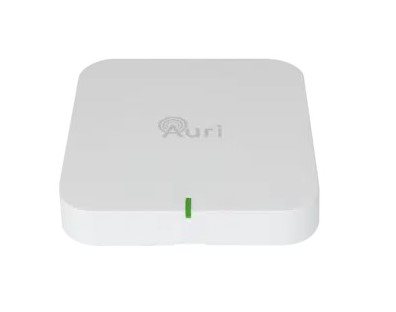
Auri TX2N / Auri TX2N-D Transmitter
The Auri TX2N Auracast Transmitter is the heart of an Auri system, providing long range, low latency Auracast broadcast audio. A pair of balanced switchable mic/line level inputs or an optional integrated two channel Dante interface allow a single stereo or two mono audio sources to be routed in a variety of ways to one or two broadcasts.
The contents of the Auri transmitter box includes the following:
- 1 Auri transmitter (AURI-TX2N or AURI-TX2N-D)
- 1 universal mounting bracket
- 3 Euroblock connectors
- 1 6ft Cat6 cable
- 1 Quick Start Guide and Safety Data Sheet
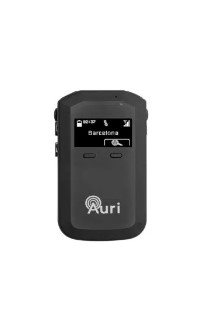
Auri RX1 Receiver
The Auri Audio Receiver is a state-of-the-art assistive listening Receiver, allowing venues to provide hearing assistance to guests while meeting compliance with disability and accessibility requirements.
-Z.jpg "AURI-D4_(MAIN)-Z")
-Z.jpg "AURI-D16_(MAIN)-Z")
Optional Auri-D4/D-16 Docking Station
The Docking Stations allow for easy charging and management of Auri Receivers and are available in 4 or 16 unit options, with accessories such as the Docking Station case and intelligent cable management unit for the AURI-D16.
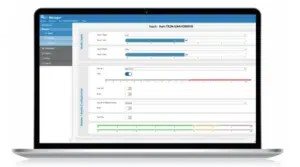
Auri Manager Software Application
The Auri Manager software for Windows® makes setting up the Auri system simple. Easily configure a single device or manage a large system deployed across multiple locations. Auri™ Manager supports automatic discovery, full control and software updates for network-attached Transmitters, charging docks and docked Receivers.
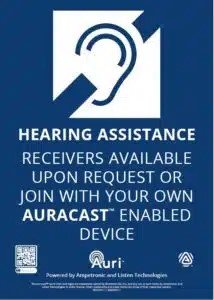
Accessories
A range of compatible accessories are available, including ear speakers and headphones, neck loops and signage.
Auri Installation Requirements
Auri installation requirements include technical language that will be familiar territory for your AV or IT professional. The software requirements to be shared with AV or IT professional is as follows:
- The software should be installed on a Windows 11 PC with at least 300MB free space. With the addition of Auri Manager v1.6, Windows 10 is no longer supported.
- The PC running the application must be connected to the same network as the devices to be controlled, and in the same subnet. A “link-local” setup is supported, where a single ethernet cable between the PC and the Transmitter or dock allows each device to automatically negotiate a compatible IP address with no wider network infrastructure or DHCP server needed.
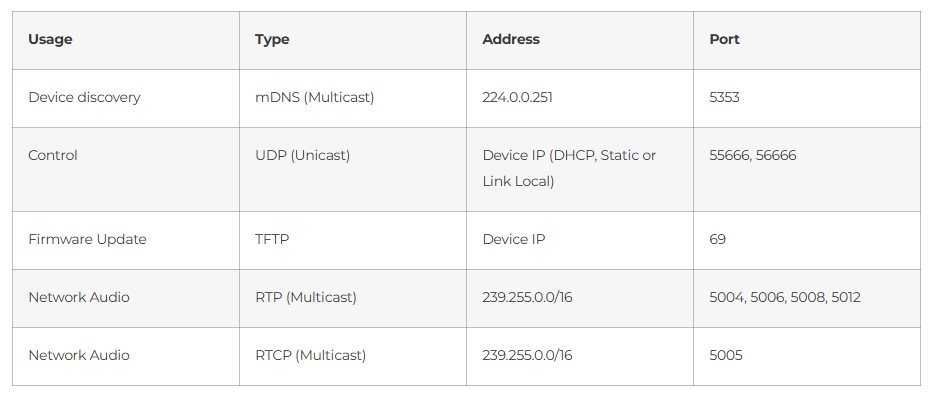
- Discovery uses mDNS and communication relies on UDP within the ephemeral port range, there must be no firewall settings in place that restrict this traffic.
- The Auri Manager includes a new feature from v1.3 onwards which allows a user to manually input the IP addresses of each device in the event that mDNS has been disabled.
Note to Audiologists:
The installation requirements outlined in tecnical language above describe how the Auri setup software finds and communicates with the transmitter and charging docks. The networking terms may be unfamiliar to you, but they will be familiar to an audiovisual (AV) or IT professional.
In practical terms, setup requires a Windows 11 computer and a connection to the Auri equipment. That connection can use the venue’s network or, for individual device setup, a direct Ethernet cable. Your AV or IT professional can check the network settings and handle any adjustments. You don’t need to understand every technical detail to help bring Auracast to your community. Share these requirements with the venue’s AV or IT contact so they can prepare for installation.
Network Requirements
Quick Start - Minimum Tranmitter Setup
- Install the software
- Connect a network cable between the PC and the transmitter
- Connect the intended audio inputs
- Power on the Transmitter (with PoE or USB-C)
- Launch the software
- On the Devices page, identify the Transmitter you want to configure – this will be named “Auri-TX2N(-D)-SerialNumber”. If no Transmitter is shown, wait a short while, in a link-local configuration the Transmitter can take up to 2 minutes to obtain an IP address. New devices should be shown automatically, if not click the Refresh button to manually rescan. If the device still isn’t shown a firewall exception may be needed, see the Troubleshooting section for more information. A new device will be shown as an Auth state of “Default.”
- Click on the Transmitter name, in the dialog enter the username and password you would like to use to manage your devices, confirm the password and click Next.
- Enter the default password for your device, each device has a unique password, the defaults are printed on a label on the rear of the Transmitter.
- On the Inputs page, select the right microphone or line mode for each input and enable phantom power if needed.
- With audio signals playing or someone speaking into the microphone, set a suitable input gain, such that the stream meters read around -18 dBfs.
- If using a microphone directly into the Transmitter, consider enabling the Low Cut filter on the relevant stream, and AGC where input levels may be variable.
- Navigate to the Outputs page and set Broadcast Name to something which users will be able to relate to the coverage area, for example the room name. Change Stream Name (Program Info) if desired.
- Adjust encryption and sample rate settings as required.
- If the second broadcast is being used, turn on the toggle switch to enable the radio and adjust the settings.
- The Transmitter should now be broadcasting audio, connect a Receiver to confirm.
- Adjust Transmit Power to the lowest level that provides full coverage of the intended area when the space is fully occupied.
System Setup
When first opening the application it will present a Devices list screen, with Devices and System tabs to the left. Once logged in an additional Credentials tab will be shown.
On the Devices page each online device name is a clickable link, when clicking a device link for the first time you will be presented with a Manage Device Credentials. If the device has already been configured with current user credentials, it will automatically bring up the Input Page for that device. If the device is in factory defaults you will first be asked to provide the default credentials which are printed on a label on the rear of the device.
Once authenticated with the first device, the software will automatically login to any other devices on the network which share the same credentials. Note that any device which the user has not provided the default credentials for will remain as Default Auth state and the user will not be able to access that device.
Note that there is no way to recover credentials once setup, other than a Factory Reset of the device. Ensure credentials are recorded in a secure place such as a password manager.